Configurable Dashboard with Multiple Templates
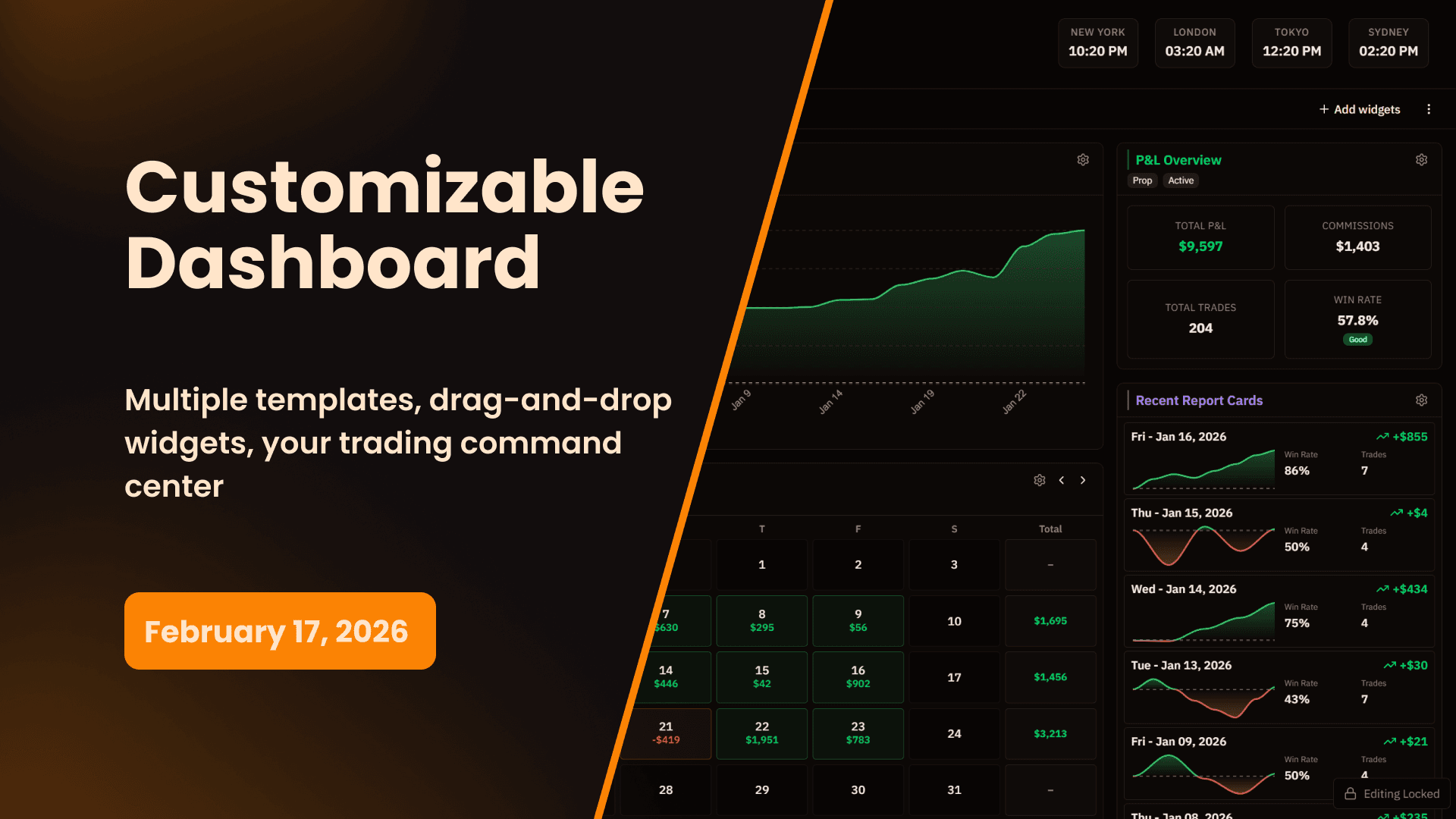
Your trading journal now has a command center. We've built a fully customizable dashboard system that lets you create multiple dashboard layouts, arrange widgets how you want, and view the metrics that matter most to your trading style.
Your trading journal now has a command center. We've built a fully customizable dashboard system that lets you create multiple dashboard layouts, arrange widgets how you want, and view the metrics that matter most to your trading style.
What's New
Multiple Dashboard Templates
Create up to four different dashboard layouts, each with its own widget configuration. Switch between templates instantly to view different aspects of your trading performance.
How It Works:
- Create Your Templates - Build up to 4 unique dashboard layouts
- Name Each Template - Label them however makes sense ("Daily Trading," "Performance Review," "Account Overview," etc.)
- Set Your Primary - Choose which dashboard loads by default
- Switch Anytime - Click between templates to change your view instantly
Each template saves its own widget arrangement, so you can design one dashboard for pre-market prep, another for end-of-day review, and a third for weekly performance analysis. Your layouts persist across sessions.
Drag-and-Drop Widget Arrangement
Organize your dashboard exactly how you want it. Grab any widget and drag it to a new position. The grid layout automatically adjusts, and your arrangement saves immediately.
No fixed layouts. No predetermined sections. You control where everything goes. Put your cumulative P&L chart front and center, or push it to the side. Move your top playbooks widget above your recent trades, or below your calendar. It's your dashboard.
Resizable Widgets in Grid Layout
Not all widgets need the same amount of space. Resize widgets by dragging their edges to make them larger or smaller within the responsive grid.
Make your P&L chart take up half the dashboard if you want detailed visibility, or shrink it down if you just need a quick glance. Expand your trade writeups widget to see more entries, or compress your recent trades list to save space. The grid maintains clean alignment while giving you complete control over widget sizing.
Add and Remove Widgets
Build your dashboard from a library of available widgets. Add the components you use, remove the ones you don't.
Available Dashboard Widgets:
- Cumulative P&L Chart - Track profit and loss over time with interactive charts
- Top Performing Playbooks - See your best setups at a glance
- Top Performing Strategies - Monitor strategy win rates and profitability
- Quick Add Trades Button - Instant access to manual trade entry
- Calendar View - Current month performance with daily P&L
- Report Cards - Recent daily, weekly, and monthly reports
- Chartbooks - Quick access to your annotated charts
- Trade Writeups - Latest post-trade analysis entries
- Recent Trades - Your most recent trading activity
Click "Add Widget" to open the widget library, select what you want to add, and it appears on your dashboard. Click the X icon on any widget to remove it. Changes save automatically.
Account Type Filtering
View data from prop accounts only, retail accounts only, or both combined. The account type filter applies across all dashboard widgets, ensuring you see relevant data for your current focus.
Trading prop accounts today? Set the filter to "Prop Accounts" and all widgets display prop-specific data. Need to review your retail performance? Switch to "Retail Accounts" and everything updates. Want the complete picture? Select "Both" to see combined metrics.
The filter setting saves per template, so your "Prop Trading" dashboard can default to prop accounts, while your "Retail Review" dashboard defaults to retail accounts.
Automatic Dashboard Updates
Dashboard widgets stay current with your journal data. When you add a trade, your cumulative P&L chart reflects the change immediately. Complete a report card, and it appears in your report cards widget without refreshing the page.
The dashboard serves as your central hub for tracking performance, always displaying your latest journal entries and metrics across all selected accounts.
Why This Matters for Your Trade Journal
Personalized to Your Workflow
Every trader reviews performance differently. Some focus on playbook statistics, others track daily P&L trends, and many need quick access to specific tools. A one-size-fits-all dashboard doesn't work.
With configurable templates, you build dashboards that match your actual workflow. Create a pre-market dashboard with your trade plan and calendar. Build a post-market dashboard focused on writeups and performance analysis. Design a weekly review dashboard with charts and statistics. Use what works for you.
Faster Access to What Matters
The dashboard puts your most-used features and important metrics one click away. Instead of navigating through multiple pages to check your top playbooks, view recent trades, and see your P&L chart, everything displays on a single screen.
Reduce clicks. Reduce navigation. Get the information you need immediately when you open My Prop Journal.
Flexible as Your Trading Evolves
Your trading focus changes. When you're testing new strategies, you might prioritize the top strategies widget. During evaluation challenges, the account metrics and daily P&L become critical. As you develop specific playbooks, you'll want those statistics visible.
The configurable dashboard adapts. Rearrange widgets as priorities shift. Create new templates when your workflow changes. Remove widgets you're not using. The system grows with you.
Clean, Organized Interface
Multiple templates prevent dashboard clutter. Instead of cramming every possible widget into one view, you distribute widgets across focused templates.
Keep each dashboard clean and purpose-driven. Your daily trading dashboard shows only what you need for active trading. Your analysis dashboard focuses on performance metrics and reports. Your planning dashboard centers on upcoming trades and strategies.
How to Get Started
Creating Your First Dashboard Template
- Navigate to the Dashboard in the sidebar
- Click Manage Templates or Create Template
- Name your template (e.g., "Daily Trading" or "Performance Review")
- Set it as your primary dashboard if you want it to load by default
- Save the template
Your new dashboard template is now active and ready for widget customization.
Adding Widgets to Your Dashboard
- Click Add Widget on your dashboard
- Browse the widget library
- Select a widget to add (Cumulative P&L Chart, Top Playbooks, Recent Trades, etc.)
- The widget appears on your dashboard
- Repeat to add more widgets
Widgets appear in default positions when first added. You can then drag and resize them to your preferred layout.
Arranging Your Dashboard Layout
- Drag to Reposition - Click and hold any widget's header, then drag it to a new position
- Resize Widgets - Drag the bottom-right corner of any widget to resize it
- Remove Widgets - Click the X icon on any widget to remove it from the dashboard
Changes save automatically. Your layout persists across sessions and loads exactly as you arranged it.
Setting Account Type Filters
- Locate the Account Type Filter dropdown at the top of your dashboard
- Select Prop Accounts, Retail Accounts, or Both
- All widgets update to display data from the selected account type
The filter setting saves with your dashboard template.
Switching Between Dashboard Templates
- Click the Templates dropdown in the dashboard header
- Select a different template name
- The dashboard instantly loads that template's layout and widgets
Each template maintains its own widget configuration and account type filter independently.
Dashboard Widget Details
Cumulative P&L Chart
Displays your profit and loss over time with interactive charting. Select time periods (daily, weekly, monthly, all-time) and watch your trading performance visualized. The chart respects your account type filter, showing prop-only, retail-only, or combined P&L.
Links directly to your full performance analytics page for deeper analysis.
Top Performing Playbooks
Shows your best 3-5 playbooks based on win rate or total P&L. Each playbook displays key metrics (win rate, total trades, profitability) with direct links to individual playbook detail pages.
Quickly identify which setups are working and which need refinement.
Top Performing Strategies
Mirrors the playbooks widget but focuses on your strategies. View your most successful entry and exit strategies at a glance, with performance metrics and links to strategy details.
Quick Add Trades Button
Large, prominent button that opens the manual trade entry form. For traders who frequently add trades manually, this provides instant access without navigating to the trade log.
Calendar View
Displays the current month with daily P&L indicators. See at a glance which days were profitable (green) and which were losses (red). Click "View Full Calendar" to access the complete calendar route with detailed daily breakdowns.
Report Cards Widget
Shows your most recent daily, weekly, and monthly report cards with key performance metrics. Links directly to individual report cards for full details, and includes a "Create New Report Card" button for quick access.
Chartbooks Widget
Lists your recent chartbooks with thumbnails or preview images when available. Provides quick access to your annotated trading charts without navigating to the full chartbooks page.
Trade Writeups Widget
Displays your 3-5 most recent trade writeups with titles, dates, and brief previews. Each writeup links to its full detail page, and the widget includes a "Create New Writeup" button for easy access to the writeup creation flow.
Recent Trades Widget
Shows your 5-10 most recent trades in a compact table or list format. Key details include symbol, date, P&L, and position size. Each trade links to its detail page, and the widget includes a "View All Trades" link to the trade log.
Dashboard Template Limits
Free tier users can create one dashboard template. Paid tier users can create up to four dashboard templates with unlimited customization.
All users have full access to drag-and-drop arrangement and widget resizing within their available templates.
Available Now
Configurable dashboards with multiple templates are live for all My Prop Journal users today. Navigate to your Dashboard to create your first template and start customizing your trading command center.
Your existing dashboard (if you had one) automatically converted to a template named "Default." You can rename it, modify it, or create entirely new templates from scratch.
Customize Your Dashboard | View All Features | See Pricing
We Want Your Feedback
Have ideas for new dashboard widgets or features you'd like to see? Contact our support team with suggestions. We're continuously expanding dashboard functionality based on trader feedback.
My Prop Journal - The complete trade journal for prop traders and retail traders. Now with fully customizable dashboards.
Newsletter
Stay Updated on Latest Features
Get notified about the latest feature releases, platform improvements, and product updates from My Prop Journal.