Commission Templates & Prop Firm Auto-Population
We've eliminated two of the most time-consuming aspects of trade journaling: manually entering commissions for every trade and repeatedly typing in prop firm account details. With commission templates and prop firm auto-population, your trade journal workflow just became significantly faster.
We've eliminated two of the most time-consuming aspects of trade journaling: manually entering commissions for every trade and repeatedly typing in prop firm account details. With commission templates and prop firm auto-population, your trade journal workflow just became significantly faster.
What's New
Commission Templates
Stop entering commissions manually for every single trade. Create reusable commission templates that automatically calculate and apply commissions to your trades during CSV imports and manual trade entry.
How It Works:
- Create Your Template - Navigate to Settings → Commissions and create a commission template for your trading platform or broker
- Set Your Rates - Define commission rates based on your actual costs (per-contract for futures, per-share or flat-rate for stocks)
- Link to Accounts - Connect the template to your prop accounts or personal trading accounts
- Automatic Application - Commissions auto-populate every time you import or manually add trades
That's it. No more calculating commissions by hand. No more forgetting to add them. No more inconsistent data entry.
Symbol-Specific and Default Rates
Commission templates support both symbol-specific rates and default fallback rates. For example, if you trade E-mini S&P 500 (ES) with one commission rate and crude oil (CL) with a different rate, you can specify both in a single template. Any contract without a specific rate automatically uses your default rate.
Futures Example:
- ES: $2.50 per contract
- NQ: $2.50 per contract
- CL: $1.85 per contract
- Default: $2.50 per contract
Stocks Example:
- Per-share: $0.005 per share
- Or flat-rate: $1.00 per trade
- Or tiered rates based on quantity ranges
The system intelligently matches your trades to the correct rates and calculates total commission automatically, including both entry and exit legs.
Auto-Population During CSV Import
When you import trades via CSV from NinjaTrader, Tradovate, TradingView, or any of our supported platforms, the system automatically:
- Identifies trades with missing commission data
- Looks up the commission template linked to your account
- Calculates the exact commission for each execution leg based on your template rates
- Applies the total commission to your trade
- Recalculates your Net P&L accurately (Gross P&L minus commissions)
You'll see the correct commissions already populated in the import preview before you finalize. No spreadsheet calculations. No manual adjustments. Just accurate data ready to analyze in your trade journal.
Auto-Population During Manual Entry
Creating trades manually? Commission templates work there too. When you add a new trade:
- Select your account (with a linked commission template)
- Enter your symbol and quantity
- Commission automatically fills for each execution leg
- Net P&L calculates in real-time
The system shows a subtle "(auto)" indicator next to the commission field so you know it was calculated from your template. If you need to override it for a specific trade, just type in a different value—your manual input is always preserved.
Prop Firm Auto-Population
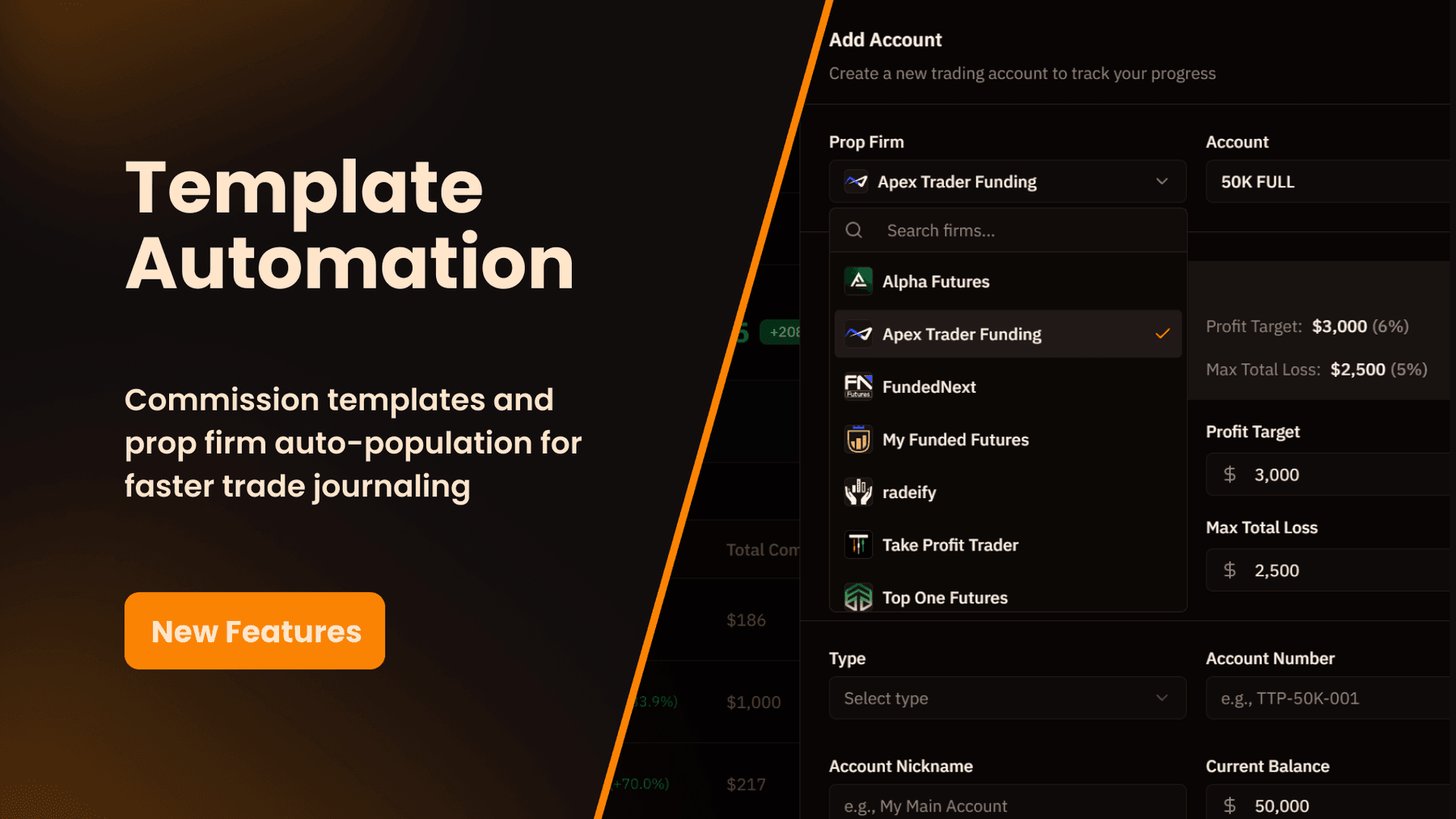
Adding prop firm accounts is now instant. When you create a new prop account, simply:
- Select Your Prop Firm - Choose from our database of popular prop firms
- Select Account Type - Pick evaluation or funded account
- Watch It Auto-Fill - Profit target, max loss, daily loss, and account size automatically populate based on the firm's rules
No more looking up profit targets or loss limits. No more typing the same account specifications repeatedly. The system knows the rules for each prop firm and fills everything in for you.
Supported Auto-Population:
- Account size (starting balance)
- Profit target
- Maximum loss (trailing or static)
- Daily loss limit
- Account-specific trading rules
This works for the most popular prop firms and makes managing multiple prop accounts significantly faster. Adding a new evaluation or funded account now takes seconds instead of minutes.
Why This Matters for Your Trade Journal
Accuracy
Commission templates ensure every trade has accurate commission data. No more guesswork. No more inconsistent entries. Your Net P&L calculations are precise every time, giving you reliable performance analytics you can actually trust.
Time Savings
Manual commission entry might seem small per trade, but it adds up quickly. Importing 100 trades? That's 100+ commission calculations you no longer have to do manually. Adding 10 prop accounts across different firms? That's 50+ fields you don't have to look up and type.
Consistency
One template serves all your trades on that account. Change your commission rate with your broker? Update the template once and all future trades use the new rate automatically. No need to remember to update your workflow or change your spreadsheet formulas.
Scalability
Managing multiple accounts with different commission structures? Create a template for each account type and link them accordingly. The system handles the complexity—you just import or add trades normally.
How to Get Started
Setting Up Commission Templates
- Navigate to Settings (click your profile icon in the top right)
- Select the Commissions tab
- Click Create Template
- Name your template (e.g., "NinjaTrader Futures" or "TradeStation Stocks")
- Choose asset class (Futures or Equities)
- Add your commission rates
- Save and activate the template
Linking Templates to Accounts
- Go to your Prop Accounts page
- Click Add Account or edit an existing account
- Scroll to the Commission Template dropdown (above Tags)
- Select your template
- Save the account
That's it. Every trade imported or created for this account will now automatically calculate commissions based on your template.
Adding Prop Firm Accounts with Auto-Population
- Click Add Account on your Prop Accounts page
- Select your prop firm from the dropdown
- Choose your account type (Evaluation or Funded)
- Watch account size, profit target, max loss, and daily loss auto-fill
- Add any custom details (account number, nickname, tags)
- Save and start trading
Commission Template Settings
The new Commissions section in Settings allows you to:
- Create unlimited commission templates
- Edit rates at any time
- Activate or deactivate templates
- View which accounts are using each template
- Delete unused templates
Templates can be shared across multiple accounts if they have the same commission structure, or you can create account-specific templates for unique situations.
Available Now
Commission templates and prop firm auto-population are live for all My Prop Journal users today. Head to Settings → Commissions to create your first template, or add a new prop account to experience instant auto-population.
Your existing accounts can be edited to link commission templates—just open the account, select your template, and save. All future trades will automatically include accurate commissions.
Get Started with Commission Templates | Add a Prop Account | View All Features
We Want Your Feedback
Using a prop firm that's not in our database yet? Contact our support team to request it. We're constantly adding new firms to make account setup even faster for traders like you.
My Prop Journal - The complete trade journal for prop traders. Now with automatic commission calculations and instant prop firm account setup.
Newsletter
Stay Updated on Latest Features
Get notified about the latest feature releases and improvements delivered directly to your inbox. Stay ahead with updates that matter.